
A vehicle monitor that powers on but shows a blue screen creates an immediate purchasing question: is the monitor defective, or is the selected channel not receiving usable video? Replacing the display without isolating the camera, cable, connector, input, and signal format can waste a sample cycle and leave the original problem unresolved.
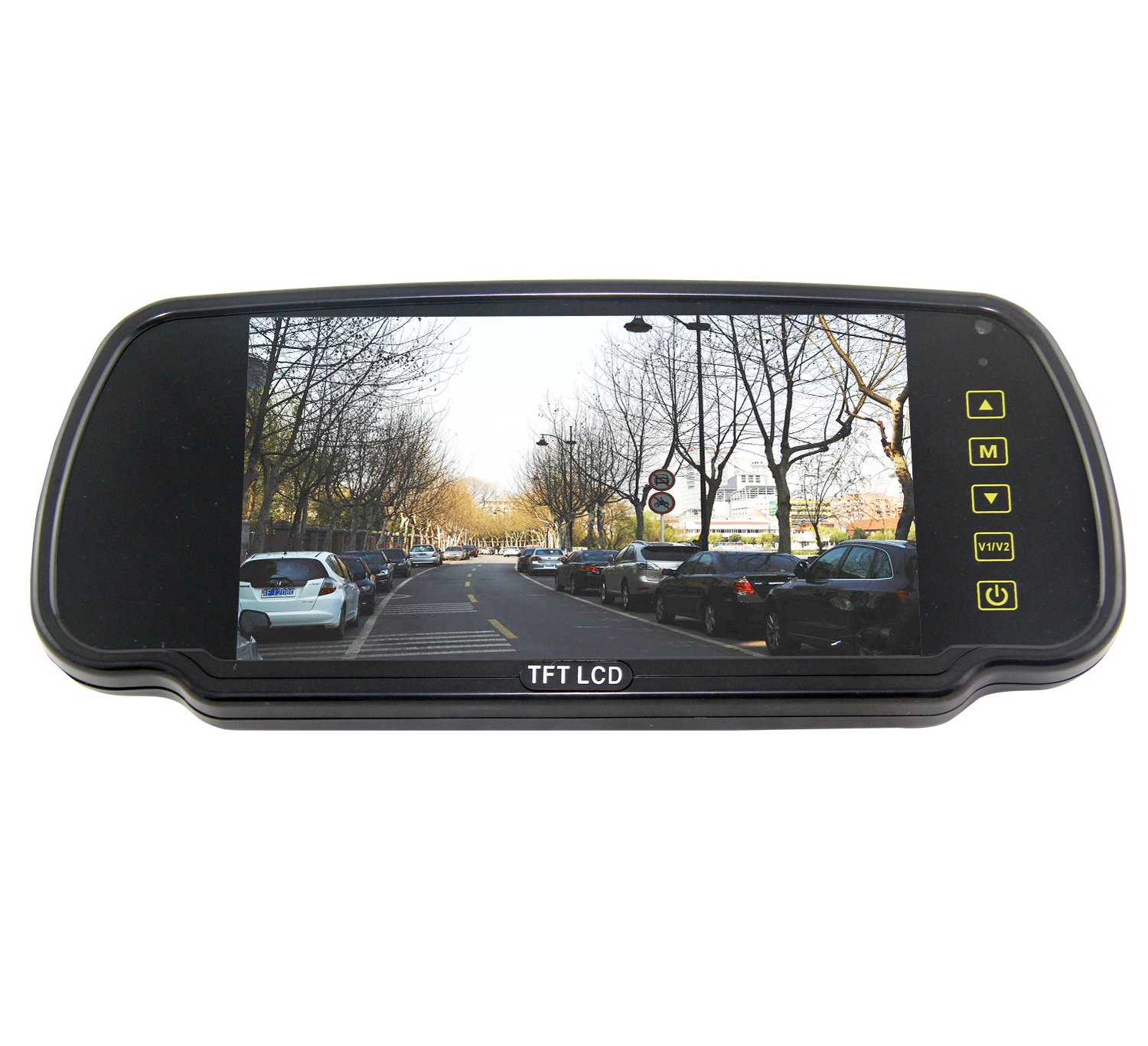
Available Xinvisual specifications for selected SF-7388, SF-9388, SF-7002AHD, and SF-1002AHD monitors explicitly list a blue screen when there is no signal. This is model-specific behavior, not a universal rule for every monitor. For the listed models, the symptom helps separate “the display is on” from “the display is receiving video.” It does not identify which system component is responsible.
This guide gives distributors, fleet teams, OEM engineers, and installers a controlled way to document the symptom, isolate the video path, and approve the correct sample configuration before a production order.
What a Blue Screen Confirms and What It Does Not
On a selected Xinvisual monitor whose specification states “blue screen when no signal,” a visible blue screen confirms that the monitor has entered a display state without usable video on that channel. It does not prove that the camera has failed. It also does not prove that the monitor, trigger wire, extension cable, or connector is correct.
Treat the symptom as the starting point for a system check. Record exactly what happens:
- Does the monitor power on normally?
- Does it show a menu or another video channel?
- Does the screen change when the reverse or side trigger is activated?
- Is the result a blue screen, a “no signal” message, a black screen, or an intermittent image?
- Does the same camera work on a known-good monitor input?
- Does a known-good camera work through the same cable and monitor input?
These observations reduce guesswork because each test changes one part of the system at a time.
Application Scenarios
New Camera-and-Monitor Sample Approval
During a new system sample, a blue screen may appear even when every component was ordered at the same time. The project team should verify the exact camera output, monitor input support, connector type, pin assignment, cable, input channel, and menu setting before rejecting a component.
For AHD and analog projects, review the existing AHD vehicle camera vs. analog camera guide as a separate signal-format check. The blue-screen symptom does not establish whether the source is AHD, CVBS, PAL, or NTSC.
Replacement Monitor in an Existing Fleet
A replacement monitor must match the installed camera and harness, not only the screen size. Two connectors that look similar can have different pin assignments. A vehicle may also contain an older analog camera that does not match the intended input of a new display.
Before ordering replacements in volume, retain one working vehicle or bench system as the reference. Test the proposed monitor with the installed camera, original cable, and required trigger behavior. The vehicle camera connector guide can support the physical-connector portion of that review.
Intermittent Image During Vehicle Operation
An image that changes between normal video and blue screen requires a different record from a permanent no-signal condition. Document whether the symptom appears with vibration, steering movement, door or tail-lift movement, rain, cleaning, or a specific camera channel. These observations do not prove the cause, but they give the installer a reproducible condition for checking connectors, cable routing, power, and the camera.
Do not convert a field observation into a reliability claim without controlled evidence. The available Xinvisual product files reviewed for this article do not provide failure-rate or service-life data.
Multi-Camera Systems
In a system with several inputs, one channel may show video while another shows blue. Test each input with the same known-good camera and cable, then test each camera on the same known-good input. This channel-by-channel matrix helps distinguish a source-side issue from an input-side issue.
Trigger wires add another layer: they select or prioritize a camera view, but they do not create the video signal. The existing trigger-wire guide explains auto-switching as a separate function.
Technical Troubleshooting Sequence
Step 1: Identify the Exact Display State
Photograph the screen and note the active channel, vehicle state, trigger state, and menu setting. “No image” is too broad for supplier review. A powered menu, a blue screen on one channel, and a completely unpowered monitor are three different observations.
If the monitor itself does not power on, stop treating the issue as a blue-screen problem. Confirm the monitor input voltage and wiring against the exact product specification and installation plan.
Step 2: Confirm the Selected Input
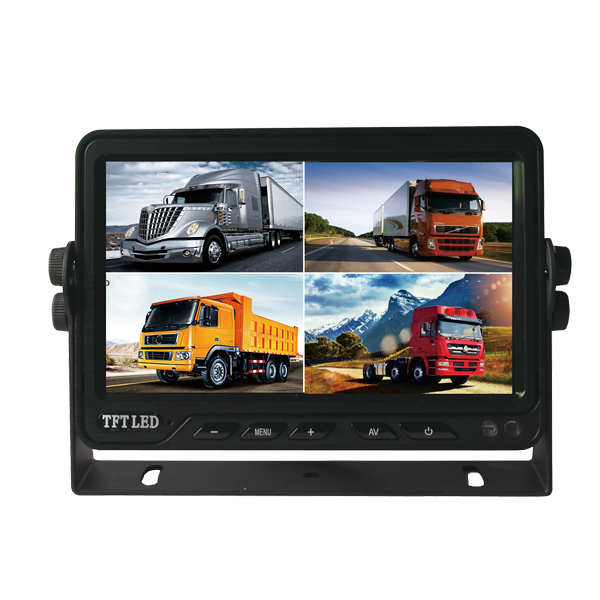
Selected Xinvisual SF-7388 and SF-9388 specifications list two video inputs with AV1/AV2 switching and one trigger wire. The SF-7002AHD and SF-1002AHD specifications list three video inputs and three trigger wires. A camera connected to one input will not provide video on a different selected channel.
Record the physical input used, the displayed channel, and the trigger assignment. If a trigger changes the display to an unused or incorrectly connected channel, the blue screen may be a correct no-signal indication rather than a failed display.
Step 3: Verify Camera Power Separately
Do not assume that a powered monitor means the camera is powered. Confirm the selected camera's required voltage and the actual power arrangement in the approved system design. Some monitors list independent camera power outputs, while other installations power the camera separately. The configuration is model-specific.
Use the project's approved electrical test procedure. Vehicle wiring should be checked by a qualified installer with the vehicle safely secured and power isolated when connectors are being changed.
Step 4: Confirm Signal Compatibility
The monitor and camera must agree on the supported video signal. Available SF-7002AHD information lists PAL/NTSC, while other Xinvisual product families include AHD and CVBS references by model. Never infer signal compatibility from screen resolution, connector shape, or the letters “HD” in a sales description.
The purchase specification should name the camera output, monitor input, resolution support, and video system. If any field is unavailable, mark it for sample confirmation instead of filling the gap with an assumption.
Step 5: Check the Connector and Cable as a Matched Path
The SF-7388 specification lists an aviation connector as optional. The SF-7002AHD specification lists aviation and AV connectors as options. Optional connector language means the ordered version must be confirmed.
Check both ends of the harness, pin assignment, extension-cable type, locking condition, and any adapter. A connector-level inspection should describe visible condition only; it should not claim internal continuity without an electrical test.
Step 6: Use Known-Good Substitution
Change one component at a time:
- Connect a known-good camera to the same monitor input and cable.
- Connect the original camera to a known-good input or test monitor that supports the same signal.
- Replace the extension cable while keeping the camera and monitor unchanged.
- Repeat the test with the required trigger active and inactive.
Label every component so the results remain auditable. Simultaneously changing the camera, cable, and monitor may restore the image, but it will not identify which change mattered.
Available Xinvisual Product References
| Model | Available No-Signal Behavior | Relevant Available Fields | Procurement Use |
|---|---|---|---|
| SF-7388 | Blue screen when no signal | 7-inch digital screen; 800 RGB x 480; two video inputs; AV1/AV2 switching; one trigger wire; optional aviation connector | Mirror-style monitor reference for channel, trigger, and connector sample checks |
| SF-9388 9-inch vehicle monitor | Blue screen when no signal | 9-inch digital screen; 800 RGB x 480; two video inputs; AV1/AV2 switching; one trigger wire | Larger mirror-style reference for the same symptom-led check |
| SF-7002AHD | Blue screen when there is no signal | 7-inch IPS screen; 1024 x 600; PAL/NTSC; three video inputs; three trigger wires; optional aviation or AV connector | Bracket-monitor reference for multi-input fault isolation |
These examples do not establish that every Xinvisual monitor uses a blue screen for no signal. Confirm the current specification and ordered configuration for the exact model.
Product and System Selection Guidance
Specify the Symptom Behavior You Need
For service teams, a visible no-signal indication can help distinguish a powered display from a valid image. If this behavior matters to the project, include it in the request for quotation and sample checklist. Do not assume it is standard across the complete monitor range.
Approve the Complete Video Path
The approved system should include the camera, monitor, extension cable, connectors, adapters, power method, input channel, signal format, and trigger mapping. A monitor-only sample cannot prove compatibility with the production camera harness.
Keep a Golden Sample and Configuration Record
After the system passes, store one labeled reference set or a controlled configuration record. Include model numbers, connector photos, pinout, cable length, menu settings, active input, trigger mapping, and live-image photos. This is especially useful for distributor repeat orders and fleet replacement stock.
Common Buyer Mistakes
Replacing the Monitor First
A blue screen on a model with confirmed no-signal behavior does not identify the failed component. Isolate the source, cable, and input before approving replacement stock.
Matching Connectors by Appearance
Connector shape does not confirm pin assignment, signal format, or camera power. Request the wiring definition for the ordered version.
Confusing Trigger Switching With Video Transmission
A trigger can select a channel while that channel still has no usable video. Record trigger behavior and video presence as separate test results.
Testing Several Changes at Once
Replacing multiple components together removes the evidence needed to diagnose a repeat problem. Use one-change-at-a-time substitution.
Generalizing One Model's Blue-Screen Behavior
The available specifications confirm this function only for selected models. Other products may display a different no-signal state.
Buyer Checklist
- Exact monitor and camera model numbers
- Screen symptom photographed and labeled
- Monitor powers on and menu is accessible
- Physical input matches the selected display channel
- Trigger channel and priority are documented
- Camera power requirement and supply method are confirmed
- Camera output and monitor input formats match
- PAL/NTSC setting is confirmed where applicable
- Connector type and pin assignment match
- Extension cable and adapters are recorded
- Known-good camera test completed
- Known-good monitor input test completed
- Cable substitution test completed
- Approved settings and sample photos retained
- Unconfirmed behavior is marked for engineering review
FAQ
Does a blue screen mean the vehicle monitor is defective?
Not by itself. On selected Xinvisual models, the specification says a blue screen appears when there is no signal. The camera, power path, cable, connector, selected input, trigger mapping, and signal compatibility still need to be isolated.
Why does the monitor switch to blue when reverse is selected?
One possible test result is that the trigger selects the reverse channel but that channel does not receive usable video. Confirm the connected input, camera power, connector, cable, and supported signal on the exact system.
Can an AHD camera work with any vehicle monitor?
No universal compatibility should be assumed. Confirm that the exact monitor input supports the camera's AHD format and resolution, as well as the required video system, connector, and pinout.
What evidence should a supplier receive for a no-signal issue?
Provide model numbers, screen and connector photos, active channel, trigger state, wiring definition, cable length, power arrangement, signal format, and results from known-good component substitution. Remove all private customer and driver information before sharing.
CTA
Send Xinvisual the camera and monitor model numbers, connector photos, pinout, cable length, power arrangement, signal format, active channel, trigger mapping, and a privacy-safe photo of the screen symptom. The team can review the configuration and identify the next sample check before replacement or volume ordering.