

A fleet may buy a mobile DVR because it can record several vehicle cameras. The value of that recording is harder to judge until someone needs a specific clip: a loading-yard incident, a disputed delivery, or a maintenance review. Can the team find the right time and camera channel, copy the video, and open it on the computer that will actually review it?
An MDVR video export test answers that question before a fleet order. Available Xinvisual documentation for one hard-disk MDVR family describes video search by recording time or type, local playback, and backup to a USB drive. It also describes remote video search, playback, and download in a configuration with supported communication modules. These entries identify functions to verify on the exact recorder and software configuration; they do not prove that every Xinvisual DVR offers the same workflow or that an exported clip will meet a particular legal requirement.
Quick Answer
Approve an MDVR export workflow only after the exact quoted configuration can find the required channel and time interval, copy the clip through the specified local or remote path, and open the copied file on the fleet’s actual review workstation. Recording, playback, export, and retention are separate stages; success at one stage does not prove the others.
What Should “Video Export” Mean in the Purchase Specification?
Write the desired outcome, not just “USB” or “4G” on a feature list. For example: “A trained operator can find a chosen camera channel and time interval, save the original clip to approved removable media, open it on the fleet’s review workstation, and record the clip’s source and export time.” If remote download matters, specify who needs access, from where, and under what network conditions.
Separate four stages. Recording creates the file on the vehicle. Search and playback find and show it on the recorder or a supported client. Export or backup copies the requested interval to another location. Review and retention confirm that the copied file can be opened, identifies the right event, and remains available for the fleet’s required period. A demonstration of one stage does not establish the other three.
Local Backup and Remote Download Are Different Workflows
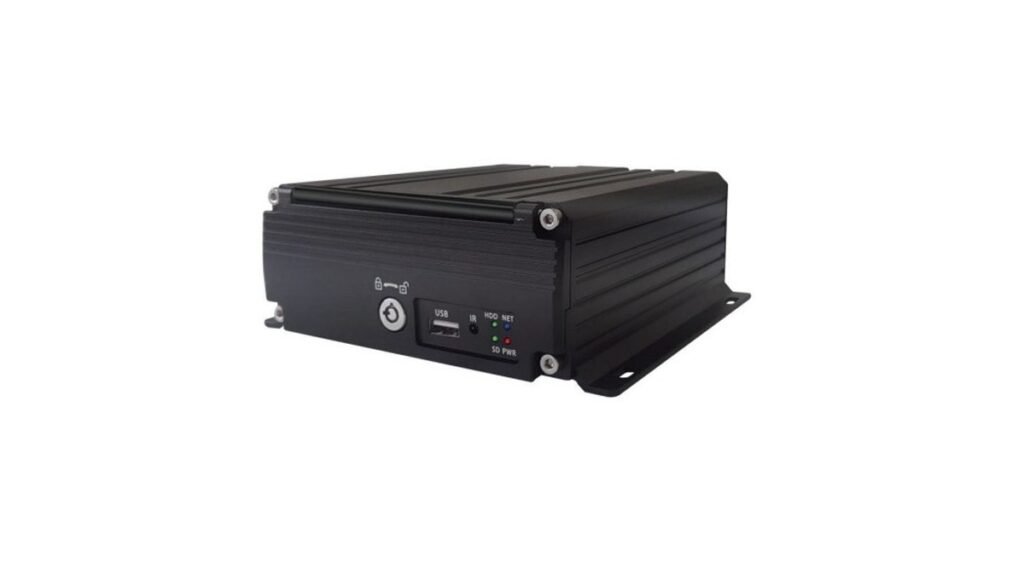
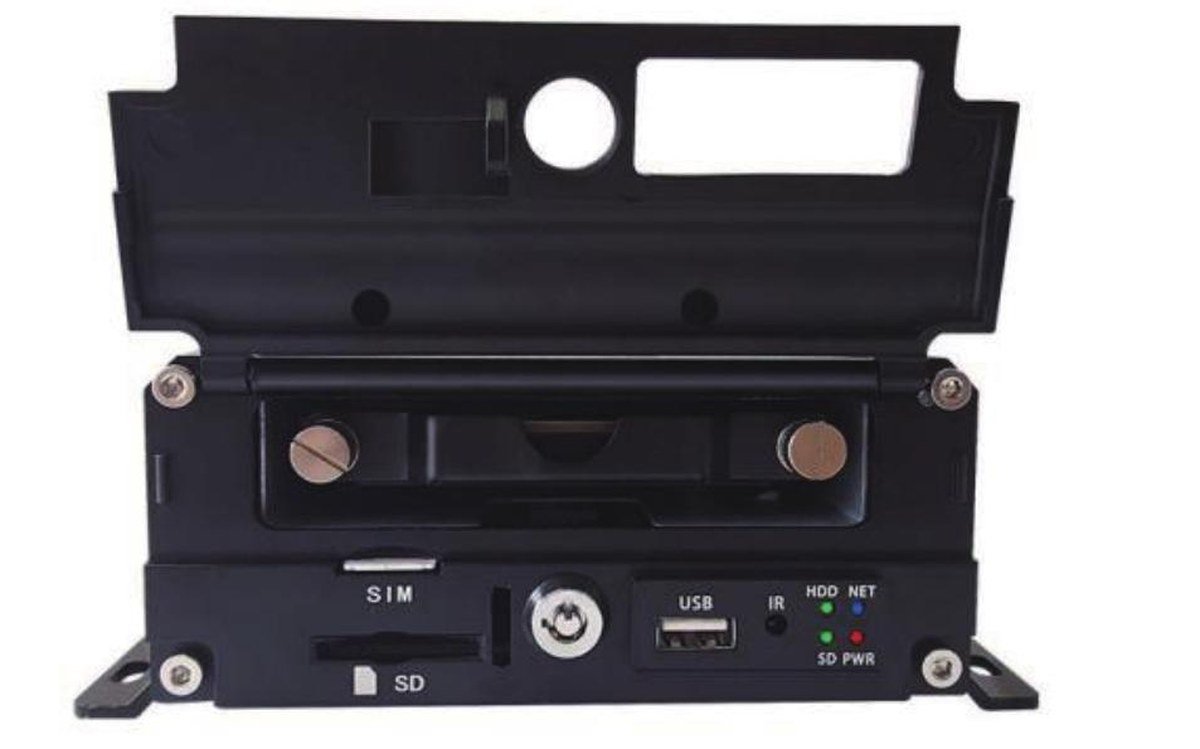
The reviewed Xinvisual hard-disk MDVR specification lists a USB interface that can be used to back up video, and it lists local playback. It separately describes remote search, playback, and download through supported 3G/4G/Wi-Fi configurations. The available document does not confirm a standard network module, a universal export file format, an included PC player, transfer speed, cloud retention policy, or permissions model for every order. The quotation and sample must identify those items if they matter.
Buyers can compare available commercial vehicle MDVR systems and review a hard disk MDVR configuration as starting points. Final approval should remain tied to the exact quoted recorder, storage, communication options, firmware, and client software.
Application Scenarios
These are typical buyer scenarios, not Xinvisual customer projects or documented field results.
Delivery Fleet Event Review
A dispatcher may need front- and side-camera video around a reported event. The acceptance test should use a known date and time, select each required channel, export the interval, and verify that each file opens on the intended office workstation. Record any difference between the recorder’s clock and the fleet’s event log.
Bus or Coach Maintenance Review
A maintenance team may review an intermittent camera or display fault. The test should confirm whether the required channel was recording, whether the time interval can be located, and whether a saved clip captures the symptom. A single successful live view is insufficient evidence that a later export will be usable.
Work Vehicle Operating in a Remote Area
A site vehicle may have unreliable mobile coverage. If the buyer expects remote downloads, test the configured network path in representative conditions and agree on a local backup procedure when the network is unavailable. Do not assume that a listed 4G option guarantees coverage or transfer time at a particular site.
Technical Solution: A Repeatable MDVR Video Export Test
1. Freeze the Exact Configuration
Record the MDVR version, firmware, installed storage, camera channel map, video format and resolution, recording schedule, date and time setting, and any communication module or client software. Note who controls the recorder and which access level the tester will use. Where the product offers recording-quality or frame-rate choices, use the ordered setting for the test. A successful export from a different demonstration setup does not approve the fleet’s bill of materials.
The recorder’s channel count is a separate selection decision. Use the existing guide to choose the required MDVR channel count before freezing the sample configuration.
2. Create a Known Test Event
Record a short, ordinary test scene on each required channel. Note the actual start and end times from an independent clock, along with the recorder’s displayed time and time zone. Include a visible change in the scene so the team can distinguish the test clip from a still image or another recording. Do not put faces, license plates, customer details, or confidential cargo information into materials intended for public use.
3. Find the Clip on the Recorder
Search by time and, if supported in the ordered configuration, recording type. The confirmed MDVR specification lists these search methods; the operator should still demonstrate them on the supplied unit. Check the channel label, playback interval, and whether the file covers the event without an unexpected gap. If a trigger or alarm is part of the requirement, test its recording and search behavior separately; the mere presence of an alarm input does not prove how an export is indexed.
4. Perform the Local Backup
Use the USB backup path only with a compatible, approved drive and a controlled procedure for connecting and removing it. Export the selected interval, then inspect the copied files away from the recorder. The reviewed specification confirms a USB backup function but does not define the supported drive format, file container, export-size limit, or workstation player. Ask for those details and verify them on the sample. Do not assume that a file which appears on the drive can be opened by every computer.
5. Test Remote Download Only If It Is in Scope
If a remote workflow is being purchased, test the exact cellular or Wi-Fi module, service plan, client, account permissions, and network environment. Use the same known interval and channels as the local test. Confirm what happens if the connection drops and how the operator recognizes an incomplete file. The source describes remote download as a configuration-dependent capability; this article makes no speed, uptime, or coverage promise.
6. Verify and Record the Handoff
Open the exported clip on the intended review workstation. Check that the image plays through the requested interval, the selected channels are correct, the apparent time and date match the test record, and any required audio is present only if separately specified and verified. Save a simple export log with the vehicle or test-unit identifier, recorder configuration, channel, interval, operator, export method, filename, file size, and location of the retained copy. Use the fleet’s own access and retention policy for incident material; legal admissibility and privacy requirements need separate project-specific review.
If the expected clip is missing, incomplete, or unreadable, first troubleshoot vehicle DVR recording problems before treating the export step as the only cause.
Buyer Checklist
- Exact configuration: Which MDVR, firmware, storage medium, and recording settings are being quoted?
- Retrieval scope: Which camera channels and time intervals must a user retrieve?
- Search method: Can the operator search by time and recording type on the supplied configuration?
- Local backup: Is USB backup required, and which drive format and file container are supported?
- Playback: Does the fleet need a supplied or separately licensed player to open the exported file?
- Remote access: Are the communication module, service plan, client, and user permissions included?
- Transfer integrity: How will the team detect an incomplete transfer or unreadable file?
- Time and identity: Are date, time zone, channel names, and vehicle identifiers set consistently?
- Audio: Is audio required and separately confirmed across the camera, recorder, export, and playback path?
- Governance: Who holds the copy, who may access it, and which retention policy applies?
- Acceptance: What exact sample test and approval record must be signed before a larger order?
Copyable RFQ Template
Vehicle type and application:
Required camera channel count:
Recording interval and schedule:
Local USB export required: Yes / No
Remote download required: Yes / No
Workstation operating environment:
Required file or player information:
Communication module and network conditions:
Storage and retention requirement:
User permissions and access owner:
Estimated order quantity:
Sample export acceptance steps:
FAQ
Does a recorder with a USB port automatically support MDVR video export?
No. A USB port can have several uses. Confirm that the exact recorder configuration supports video backup through that port, which drive types it accepts, and whether the exported file opens on the buyer’s review workstation. The reviewed Xinvisual MDVR specification explicitly lists USB video backup for its documented family.
Can the team download footage remotely if the MDVR has 4G?
Only if the ordered hardware, enabled modules, client software, account permissions, and network path support the workflow. The reviewed specification describes remote download through supported communication configurations; a “4G” label alone is not a successful export test.
Is playback on the recorder enough for an incident-review requirement?
Not when the team must share or retain a separate copy. Test the full sequence: search, playback, backup or download, open on the intended workstation, and log the retained file. Specify any special player or conversion step in the acceptance criteria.
How long can the MDVR keep footage before it is overwritten?
That depends on usable storage, channel count, bitrate, recording schedule, and the configured overwrite behavior. It is a separate storage-sizing question. Use the ordered settings and a measured sample file to estimate retention; do not derive a guaranteed number of days from the existence of an export feature.
Request an MDVR Export Workflow Review
Send Xinvisual Electronics the vehicle type, camera count, recording interval, required local or remote export path, workstation environment, storage target, estimated order quantity, and sample-acceptance steps. Ask the team to map a documented MDVR configuration and demonstrate a complete clip retrieval and export before you approve the order.